

Excel Capital Management · Banking guide
Plaid connects your bank account to an app or financial service you choose. With your permission, it can share account details, transactions, or other supported records. You may see Plaid when you set up a budgeting app, fund an investment account, or verify banking information.
The company asking you to connect chooses which Plaid products it uses. That choice affects the information requested and the steps you see. What Plaid does.
Below, you can follow the bank connection walkthrough, see what a company can receive, and compare Plaid products with real demo screenshots.

What is Plaid in banking
Plaid is a financial technology company that helps banks, apps, and other financial services exchange information. You usually encounter it inside a service you already chose to use.
For example, a budgeting app might use Plaid to import transactions. An investment service might use it to connect a funding account. A financing provider might use it to verify banking information.
Plaid is not the bank that holds your business deposits, and completing its connection process does not mean Plaid has approved a loan. Your financing provider remains responsible for its funding decision.
You may hear the connection called Plaid banking, Plaid bank verification, or Plaid Link. Those terms describe related parts of the experience. Link is the interface where you select your institution and authorize the connection. About Plaid Link.
How does Plaid work
The app or provider starts a Plaid connection. You review the request, choose your bank, sign in, and authorize the accounts and information to share. Plaid then makes the supported data available to that company. The company uses it to carry out the task you requested, such as importing transactions or checking account details.
With many bank connections, you sign in at the bank's own website or app and return to the service afterward. The exact route depends on the institution. How bank authorization works.
What is Plaid bank verification?
Plaid bank verification is a process a company uses to check bank account information through Plaid. The exact check depends on the product: Auth retrieves account and routing details, while Identity and Identity Match can help check account ownership information. Other products supply balances, transactions, or statements.
Completing a bank login is only part of verification. The requesting company still has to receive the information it needs and review the results. A successful connection does not establish that a loan is approved or that funding has been sent.
Security and permissions before you connect
Plaid is a legitimate financial technology company with documented security controls. It describes AES-256 encryption for stored data, TLS protection for data in transit, continuous monitoring, and independent security testing. Its compliance program also includes SOC 2 Type 2, ISO 27001, and ISO 27701 audits. Those safeguards matter, but they do not make every connection or every app risk-free. Sources: how Plaid protects data and Plaid's compliance audits.
For a closer look at passwords, data sharing, and managing access, read our Is Plaid safe? Security and privacy guide.
Where you enter your bank password
It depends on how your bank connects. With OAuth, you sign in through your bank, and Plaid says it does not receive or store your bank login credentials. With some other connection methods, you provide those credentials to Plaid, which stores them to retrieve account information. Plaid says it does not share your bank login credentials with the connected app in either case. How Plaid handles credentials.
Check the company requesting access as carefully as the connection itself. Read which data it wants, why it needs it, and how it will use that information. If you do not recognize the request, contact the company through its official website before continuing.
What is Plaid used for

The same connection technology can support very different tasks:
- A budgeting app can organize linked transactions.
- An investing app can connect a bank account used for deposits.
- A payment service can help set up an authorized bank payment.
- A financing provider can request financial records for verification.
- A financial app can ask for a separate identity check.
The product guide below explains the tools behind these examples. You complete the process the requesting service presents; you do not need to sign up for each Plaid product yourself.
Why a funding provider asks you to use Plaid
At Excel Capital Management, we use Plaid prior to funding. It is not an upfront step in our initial application.
An application describes your business and what you are looking to finance. Bank verification helps a provider check financial information against the records available from your institution.
Depending on the products and permissions involved, verification can help answer questions such as:
- Does the account information match the business or applicant?
- Is the intended bank account connected successfully?
- What does the available financial history show?
- Are the requested statements or other records available?
Plaid offers separate tools for account details, account ownership information, and bank statements. A connection does not automatically include every tool.
Sharing records electronically can save you from entering account details or collecting documents by hand. Your provider may still ask for additional records or an explanation of an entry in your account.
Suppose you run a contracting business and receive a request to verify your business checking account before funding. Your personal checking and tax savings accounts use the same bank login. Choose the business account the provider requested, then check the selection before continuing. That simple check can prevent a follow-up request for the correct account.
Already working with Excel Capital? Use the verification request associated with your application. If you are unsure which account to connect or whether a request is authentic, contact our team before continuing.
How to connect your bank account through Plaid

Use these steps to complete a Plaid Link connection. Your bank may show different screens, but the same checks help you connect the right account and understand what you are sharing.
Connection guide
Complete a Plaid Link connection
A typical bank connection. Screens and account choices vary by bank and service.
- Confirm the request
Open the service or verification request you recognize.
- Review access
Check who is asking and which information they need.
- Find your bank
Choose the matching personal or business banking option.
- Authenticate
Follow the bank or Plaid prompts and complete any security check.
- Select accounts
Review the accounts and permissions presented before continuing.
- Finish and return
Complete the flow, then return to the requesting service.
Connected does not mean approved or funded. Ask the requesting company whether anything else is needed.
Sources: Plaid Link · Bank authorization
1 Confirm the request
Start with the request supplied for your application or open the service directly. If a message arrives unexpectedly, verify it with a contact you already know.
A familiar logo is not enough to establish that a message is legitimate. For an Excel Capital application, use our published contact details if you need help confirming the request.
Have access to your own online banking login and the device you use for bank security checks. If the account belongs to your business, make sure you are authorized to connect it.
2 Read the connection notice
Check the name of the service requesting access and the information it wants to receive. The notice should help you understand why the connection is being made.
If the request does not fit what you were told, stop and ask for clarification. You do not need to guess which permission is appropriate for your application.
3 Select the correct financial institution
Search for the bank or credit union where the requested account is held. When separate personal and business banking options appear, choose the one that matches your online banking access.
A bank being available in one Plaid-powered app does not guarantee it will be available in another. Support depends partly on the information and products each service needs. Plaid's explanation of institution availability.
4 Sign in and complete the security check
Many banks send you to their own website or mobile app to sign in and authorize access. This is commonly called OAuth. It allows the bank to grant access without giving Plaid your bank password. Other supported connections can work differently. Plaid's OAuth documentation.
Follow the bank's authentication prompts, which may include a code or an approval in its app. Enter security codes only into the legitimate flow you initiated. Do not email them or read them to someone who contacts you.
5 Review the accounts being shared
Choose the account or accounts requested for your application when the flow provides that choice. Check the account name and last few digits carefully.
Check the selected accounts before you continue. In Plaid's current Account Select flow, the app can access data for the accounts you select. Your bank may also show its own account and data permissions. Older connections can behave differently, so review the consent screens for your request. Plaid's account selection documentation.
6 Complete the flow and return to your application
Follow the remaining prompts until the connection finishes. Plaid Link handles authentication and the return from supported bank login flows. Plaid Link overview.
After the connection finishes, return to the requesting app or your funding contact for the next step. The provider may still be waiting for data or reviewing other funding conditions.
If you selected the wrong account, tell your funding contact instead of repeatedly creating new connections.
Inside the connection process
Plaid login screens: what to expect
These are actual screens from Plaid’s public Auth sandbox demo. The bank name, sample accounts, and requesting company belong to the demo. This example shows a credential-based connection; your bank may send you to its own website or app instead.
Open the connection request inside the service you are using, select your bank, and check who is asking for access. For an Excel Capital application, Plaid comes into the process prior to funding.
Sign in securely


Follow the sign-in route shown for your institution. In this sandbox example, Plaid displays username and password fields. An OAuth connection sends you to the bank’s own sign-in page or app. Complete any bank security check there.
Choose the account

Select the account requested by the service, then review the access and consent screens that appear. For a business verification request, check that you selected the intended business account rather than a personal account.
Follow the final confirmation, then return to the app or application. Look for its connection status or next instructions. A successful connection confirms that this step completed; it does not by itself mean financing is approved.
Sandbox example: These are static screenshots with fictional data, not working forms. They do not represent Excel Capital’s exact screens or Ally Bank’s current live connection method.
Sources: Plaid’s interactive product demos and Plaid’s bank authorization documentation.
What information can Plaid share
The information available depends on the product, the institution, and your authorization.
| Information | What it can mean in practice |
|---|---|
| Account and routing details | Identifying an account for a supported payment or account verification process. |
| Account holder information | Comparing the name and other available ownership details with application information. |
| Balances | Checking current or available funds where supported. |
| Transactions | Reviewing deposits, withdrawals, dates, and descriptions. |
| Financial statements | Obtaining bank-issued PDF statements where the Statements product is supported. |
These are different capabilities. Auth, Identity, Balance, Transactions, and Statements each serve a different purpose.
For example, an account ownership check is not a complete review of cash flow. A transaction feed is not necessarily the same document as the monthly PDF statement your bank produces.
Ask your provider what information it needs for your application, which accounts to connect, and whether it expects a single report or continuing access.
How the receiving company sees your information
The company does not receive a live view of your online banking session. It can retrieve supported data fields or documents and display them in its own systems. Some products also supply reports. The format depends on its integration, so there is no single dashboard that every Plaid customer sees. Account data, asset reports, and bank statements.

The example below shows possible categories of information using fictional details. It is a teaching example, not Excel Capital's internal screen.
From permission to review
What the receiving company can see
Illustrative data flow and fictional sample. This is not a Plaid or Excel Capital screen.
- You authorize
Accounts and data types in the connection flow
- Plaid retrieves
Information supported by the bank and enabled products
- Company receives
Data in its systems or reports, depending on the product
Fictional example of possible received fields
| Field | Illustrative value | Related capability |
|---|---|---|
| Account | Business checking ending 4821 | Account details |
| Ownership | Sample Business LLC | Identity |
| Current balance | $12,480.50 at retrieval | Balance |
| Account activity | Deposit $2,100; withdrawal $450 | Transactions |
| Statement | Monthly bank PDF, if supported | Statements |
This example combines possible outputs. A request may include only some of them. A masked account display does not mean the recipient cannot receive account or routing details through an enabled product. Bank passwords are not shared with the connected company.
Sources: Account fields · Identity · Statements · Credential access
Account linking and payment authorization
A request to share banking information and an authorization to make payments serve different purposes. Read the permissions and payment terms presented for your particular application.
Plaid also offers payment products. For bank debits through Transfer, a company must collect the required payment authorization. Review that authorization separately from permission to share account data. Plaid's transfer authorization guidance.
Do not assume that seeing Plaid means a withdrawal is authorized. Equally, do not assume that a connected service has no payment capability simply because it uses Plaid.
If you are reviewing a funding agreement, check its disbursement and repayment provisions separately from the bank connection notice.
Plaid products and examples of how they are used
Plaid offers more than a bank login window. Its products cover account connections, financial data, payments, identity checks, and risk analysis.
The examples below explain what these tools can do. They do not mean that Excel Capital uses every listed product or requests every listed data type.
Account connections and verification
| Product | What it does and an example |
|---|---|
| Plaid Link | Provides the account connection interface. A business owner selects a bank and completes the required authorization. |
| Auth | Retrieves account details used to set up bank payments. An app can connect a checking account to a payment processor. Auth itself is not the payment processor. |
| Identity and Identity Match | Retrieves or compares ownership information reported by the bank. A provider can check whether an account holder's name matches the applicant. |
| Balance | Retrieves current balance information. A payment service can check available funds before attempting a bank payment, where that data is available. |
| Database Auth | Supports verification using account and routing information, including supported alternatives to online bank login. An app can offer it as a fallback when its integration permits. |
| Layer | Helps eligible returning users reuse saved information with permission. A financial app can reduce repeated form entry during account setup. |
Financial records and underwriting
| Product | What it does and an example |
|---|---|
| Transactions | Supplies transaction data. A finance app can organize spending and deposits into a useful account history. |
| Statements | Retrieves bank-issued PDF statements from supported US institutions. A provider can obtain the actual statement document for a verification request. |
| Assets | Produces a report containing balances, transaction history, and other financial information. A lender can use the report in a supported asset verification workflow. |
| Income | Supports bank, payroll, or document-based income verification, depending on the product. A user might connect payroll or upload a pay stub in an eligible flow. |
| Consumer Report by Plaid Check | Provides consumer financial reports and underwriting insights through Plaid's consumer reporting subsidiary. A US consumer lender can assess permissioned cash flow information. |
Plaid's current documentation recommends Consumer Report by Plaid Check for many new underwriting customers. Assets and Income remain relevant for use cases the newer solution does not support. This is an evolving product lineup, so older reviews may describe a different default setup. Plaid's underwriting comparison.
Plaid Check is designed to evaluate US consumers. Do not assume it is used in a business funding application. Its LendScore suite uses cash flow and network insights to help lenders assess credit risk. Plaid also offers Cash Advance Index for providers assessing repayment risk on small consumer cash advances; that product is distinct from merchant cash advances for businesses. These are tools the requesting company evaluates, not separate login tasks you need to complete.
Payments and payment risk
| Product | What it does and an example |
|---|---|
| Transfer | Combines account connection and supported US money movement capabilities. A business can collect an authorized bank payment through an eligible integration. |
| Signal | Helps assess the risk that an ACH payment will be returned. A service can use the assessment when deciding how to handle a payment. |
| Guaranteed Payments | Offers payment risk coverage for eligible approved transactions under the provider agreement. The product page currently advertises a waitlist. This is not a guarantee of loan approval. |
Identity and fraud prevention
| Product | What it does and an example |
|---|---|
| Identity Verification | Helps verify the person using a service through supported identity data, document, and liveness checks. A financial app might request an ID document and a selfie. |
| Monitor | Supports sanctions and other watchlist screening. A compliance team can review potential matches during onboarding and ongoing monitoring. |
| Protect | Analyzes signals involving users, devices, and accounts to help detect fraud. A service might send an unusual application for additional review. |
Identity and Identity Verification are easy to confuse. Identity focuses on ownership information associated with an account. Identity Verification helps establish whether a person is who they claim to be. How the two products work together.
Financial management and investing
| Product | What it does and an example |
|---|---|
| Enrich | Adds categories and merchant details to transaction data, including data from other sources. An app can turn a difficult statement description into a recognizable merchant entry. |
| Investments | Supplies holdings, balance, and investment transaction information. A financial planning app can display a connected portfolio. |
| Liabilities | Provides supported debt details, such as credit card balances and mortgage information. A planning tool can help a user see upcoming obligations. |
| Investments Move | Helps automate information gathering for brokerage asset transfers. A brokerage can reduce manual entry when a customer moves an investment account. |
A real example is Acorns. Plaid's Acorns customer story describes its use of Layer to simplify onboarding for eligible users. That is a different experience from a business owner verifying banking information before funding, even though both involve Plaid. Acorns customer story.
How to complete other Plaid product requests
A request for payroll information, an uploaded document, or an identity check can look different from a bank connection. Follow the process offered by the company requesting it. The examples below show common paths, not additional steps every Excel Capital applicant must complete.
For financial records or income verification, start with the source the service asks for: your bank, your payroll provider, or an accepted document.
Follow the requested path
Complete a financial records or income request
Use the path your service offers. These are alternatives for different products, not a checklist to complete in full.
Bank records
Statements or Assets
- Connect the requested bank account
- Review the requested access and finish Link
- Return to the service for its review
What it providesAvailable statements or a financial report, depending on the product.
Payroll connection
Payroll Income
- Find the supported employer or payroll provider
- Sign in and complete the requested checks
- Finish and return to the service
What it providesSupported income and employment information.
Document upload
Document Income
- Choose a document type the service accepts
- Upload a clear file with one document per file
- Submit and wait for processing or follow-up
What it providesUploaded documents and supported extracted income information.
Accepted documents and institutions vary. An upload finishing does not mean review is complete. Many new US consumer underwriting integrations use Plaid Check; that is a separate product choice.
Sources: Statements · Assets · Payroll Income · Document Income · Underwriting options
For identity checks and payments, pay attention to the purpose of the request. Proving who you are and authorizing a debit are separate tasks.
Different tasks need different permissions
Complete identity checks or payment setup
These are separate examples. A bank verification request does not automatically require both.
Identity Verification
Confirm the person using the service
- Check your details
Confirm or enter the identity information requested.
- Complete enabled checks
Follow phone, ID document, or selfie prompts if shown.
- Submit and return
Wait for the service’s result or follow-up.
Finishing the screens does not itself confirm that verification passed.
Payment setup
Choose an account and review payment terms
- Choose the account
Connect or verify it using an option the service supports.
- Read the authorization
Check the recipient, amount or calculation, timing, and any recurring terms.
- Confirm if you agree
Keep the confirmation and check the payment status with the service.
Sharing account data and authorizing a debit are different permissions.
Tools such as Signal, Monitor, Protect, and Enrich usually support the company’s workflow behind the scenes. They do not each require you to complete a separate consumer signup.
Sources: Identity Verification · Payment authorization · Auth

Identity checks, step by step
Plaid Identity Verification: a screen-by-screen guide
Plaid Identity Verification is a separate product from linking a bank account. These actual sandbox screens show some of the information a service may request. The checks and their order depend on that service’s setup.
Enter your phone number

Start from the service’s verification request and review the disclosures. Enter a mobile number you can access. Depending on the flow, you may also be asked for your country or date of birth.
Confirm the text code

Enter the one-time code sent during your verification session. The phone number shown here is public sandbox test data. Use your own details in a real request, and never read a code to someone who unexpectedly calls or messages you.
Check your legal details

Use your name as it appears on your government-issued ID. Enter or review any address, date of birth, or other identity information the service asks for. Correct mistakes before continuing.
Complete any extra checks
When requestedThe next steps may use your phone’s camera. Not every verification request includes a document or selfie check.
- Photograph your ID. Choose an accepted document and follow the prompts for the required sides. Keep the image sharp and the full document visible.
- Complete the selfie check. Allow camera access if you choose to continue, position your face as directed, and follow the on-screen prompts.
- Return to the service. Read its result or next-step message. If the request needs review, contact the company that asked you to verify.
This panel explains possible follow-up steps. It is not a screenshot of the document or selfie capture interface.
Example, not an Excel Capital requirement: These static screenshots come from Plaid’s test environment. The appearance and required checks can change. This guide does not imply that Excel Capital uses Plaid Identity Verification.
Sources: Plaid’s interactive demos, Identity Verification product overview, and Plaid’s consumer verification help.
Plaid product walkthroughs: follow the request you received
A Plaid connection can serve several purposes. Start with the task your app or provider has asked you to complete. You do not need to work through every product on this page.
About these screenshots: We captured the examples below from Plaid’s public interactive demos. The companies, people, accounts, balances, and results are fictional sandbox data. Receiving-company screens are Plaid’s demonstration interfaces, not Excel Capital’s dashboard. Your screens and available options may differ. Select a screenshot to see it at full size.
Official sandbox screenshots
Transactions: connect accounts and share account activity
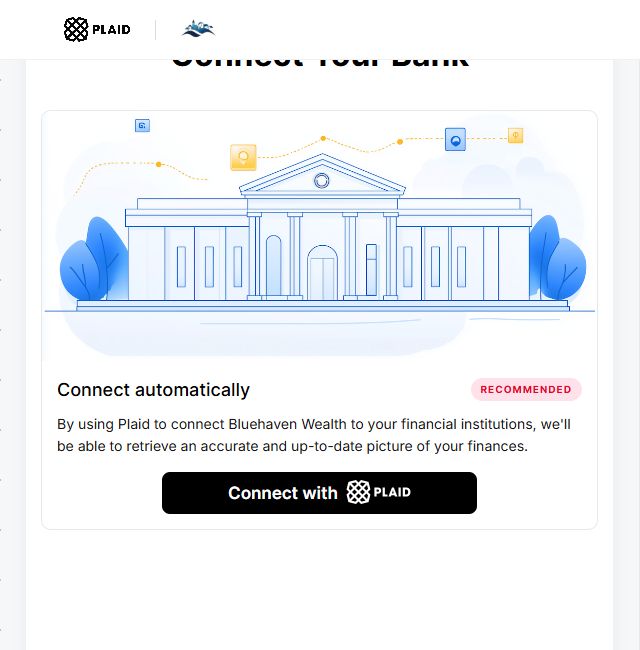
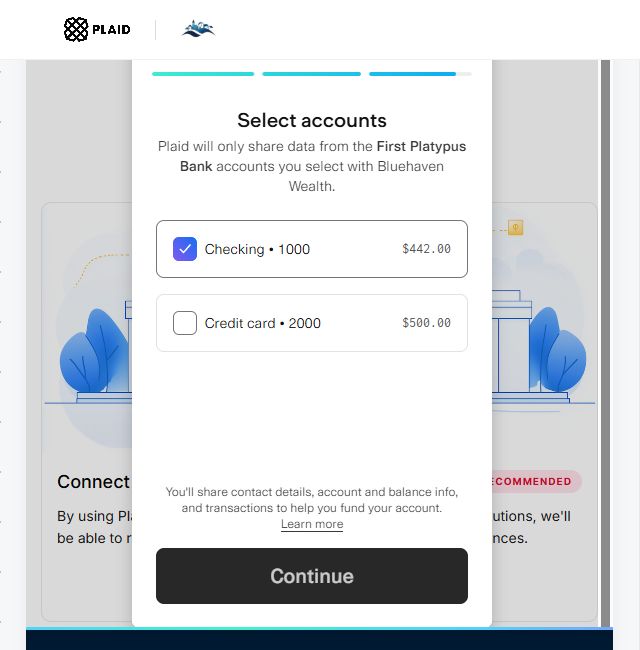
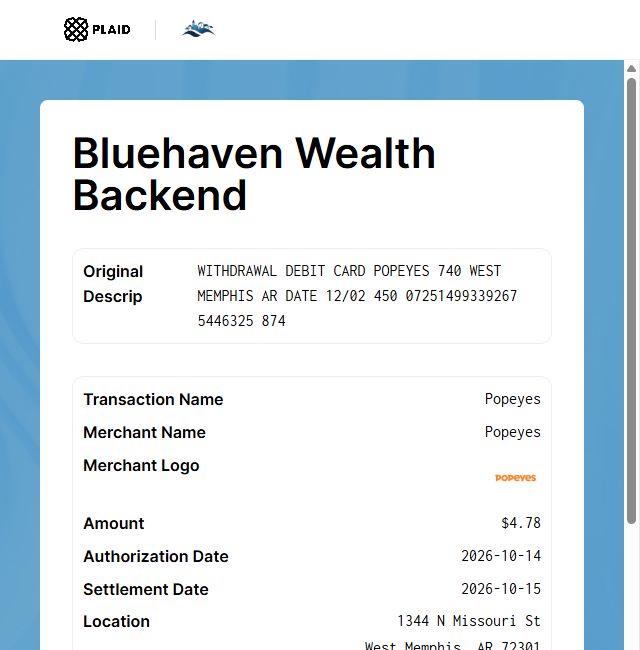
This example shows a financial app connecting accounts, followed by a sample transaction on the receiving side.
Start in the requesting app


The app opens Plaid when you choose to connect an account.
Choose which accounts to share

The account selection and access notice belong to this particular demo.
See the receiving-side example

Plaid’s sample interface displays transaction details after the connection.
How to complete the request
- Open the app’s account connection request and read the data-access notice.
- Choose your institution, sign in through the route presented, and complete any security check.
- Review the eligible accounts and select the ones you intend to share. Complete the remaining consent screens.
- Return to the app and allow its account activity to load. If it still shows a connection error, use its reconnect option or contact support.
The app may receive dates, amounts, merchant information, and categories. Data availability and update timing vary. A successful connection does not mean every transaction has already loaded.
Sources: Interactive Transactions demo · Transactions documentation
Official sandbox screenshots
Consumer Report by Plaid Check: connect, consent, and return
Plaid’s public Income demo currently demonstrates a consumer report and Income Insights. The examples below show account selection and two receiving-side views.
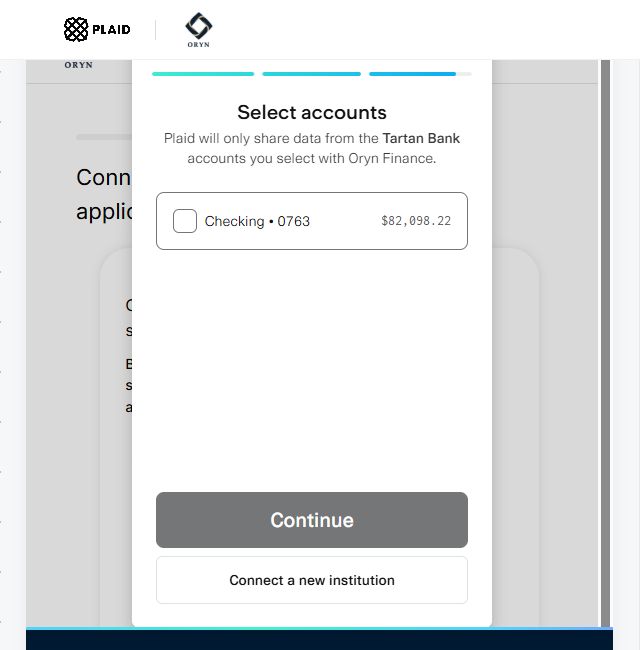
Select the requested account

Choose the account relevant to the request, then continue to the report-sharing consent.
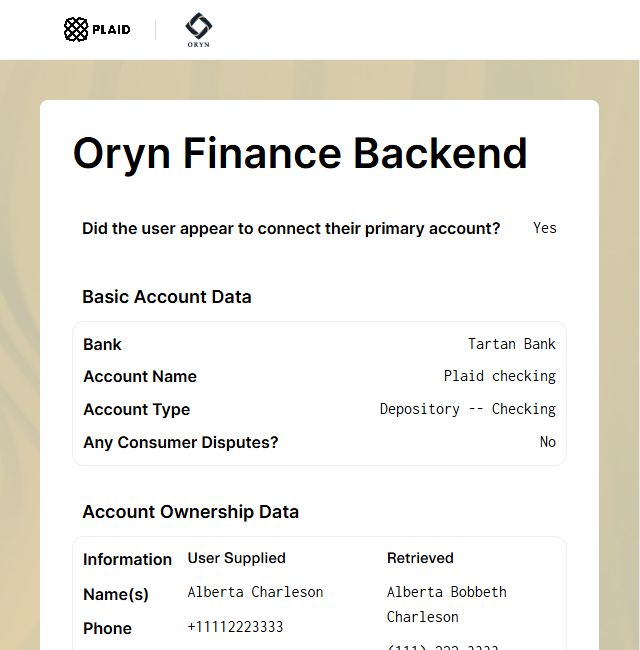
Account and ownership information

The demo’s receiving company can review information included in the report.
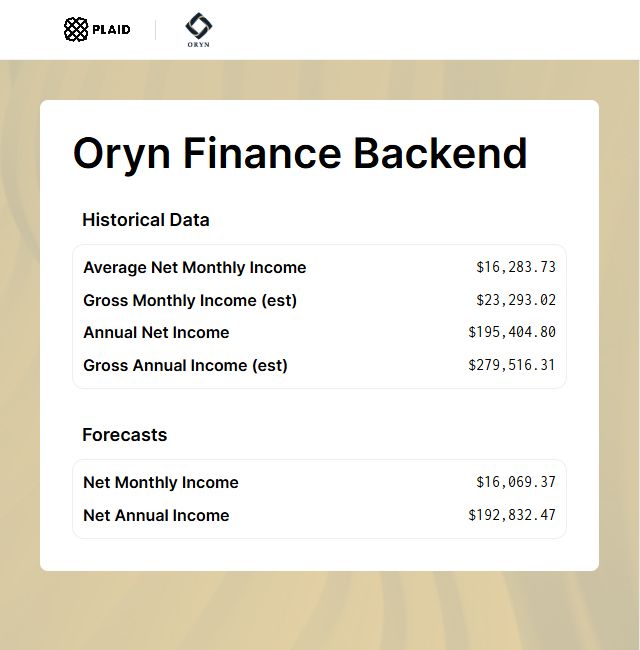
Income Insights example

Estimated gross income and forecasts are labeled separately from historical figures.
How to complete the request
- Start from the requesting service. Confirm your phone number if the flow asks for it, then complete the code check.
- Choose your bank, authenticate if prompted, and select the relevant accounts.
- Read the report-sharing disclosure and confirm only if you agree to provide that report to the named company.
- Finish Link and return to the service. Wait for the report to process and respond to any follow-up request.
This is a US consumer reporting example. It does not establish which Plaid product Excel Capital uses. Completing consent is not a funding decision, and forecasts are not guaranteed future income.
Sources: Public Income demo · Plaid Check documentation
Official sandbox screenshots
Layer: review saved details before sharing
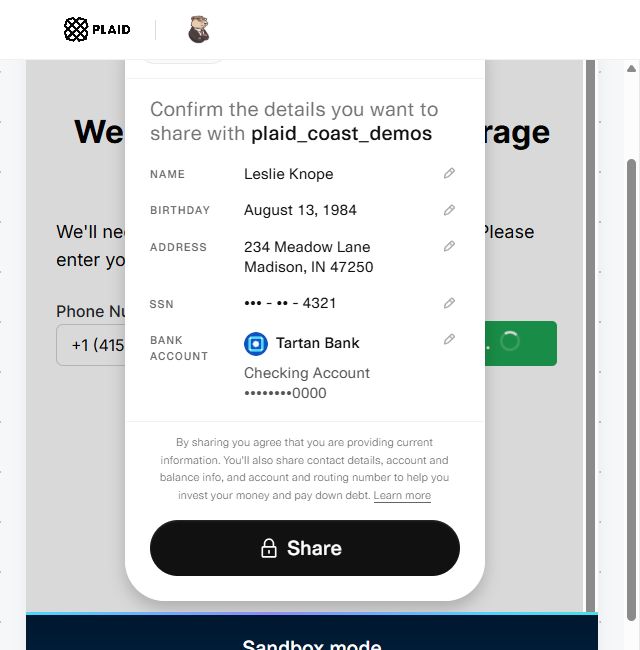
Eligible users can reuse information during onboarding. In this demo, a phone check leads to a review of personal details and a connected account.
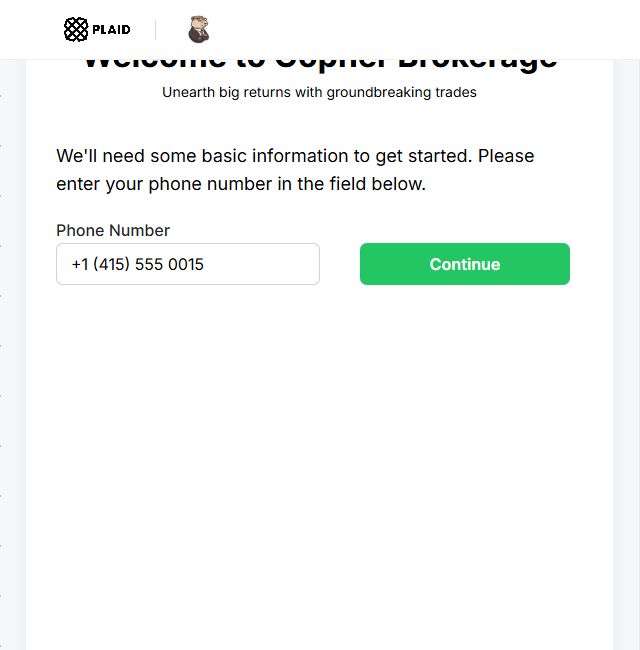
Enter your mobile number

Start in the service you are joining and provide the requested number.
Review the sharing screen

Check both the personal information and the account before sharing.
How to complete the request
- Enter the requested mobile number in the app’s onboarding flow.
- If Layer is offered, read the notice and complete the phone or device authentication shown.
- Review the saved details and account selection. Use the available correction or alternative-entry options if something is wrong.
- Choose Share if you agree, then finish any remaining setup in the requesting app.
Layer availability depends on eligibility and the app’s setup. A returning user may see a shorter process, while another user needs to enter information or connect an account.
Sources: Interactive Layer demo · Layer documentation
Official sandbox screenshots
Transfer: connect a bank and authorize a payment
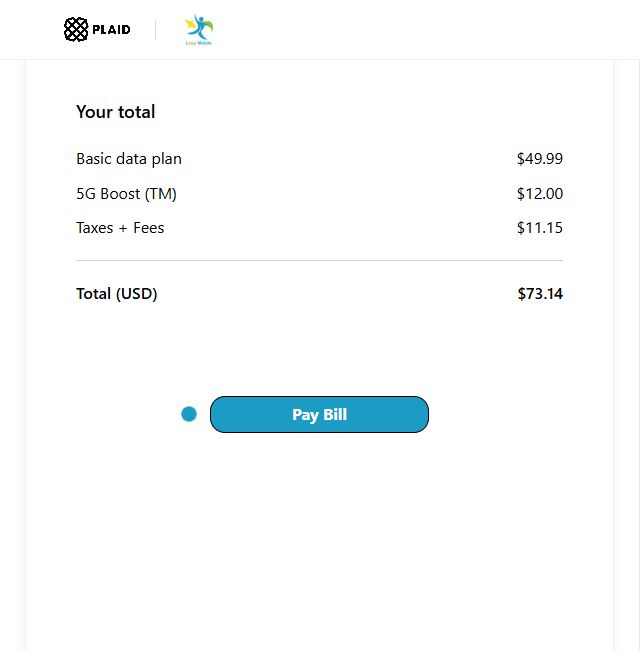
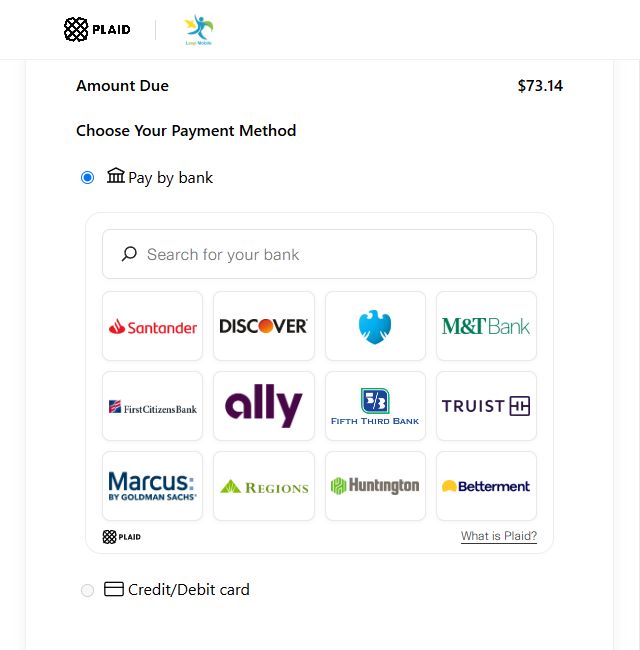
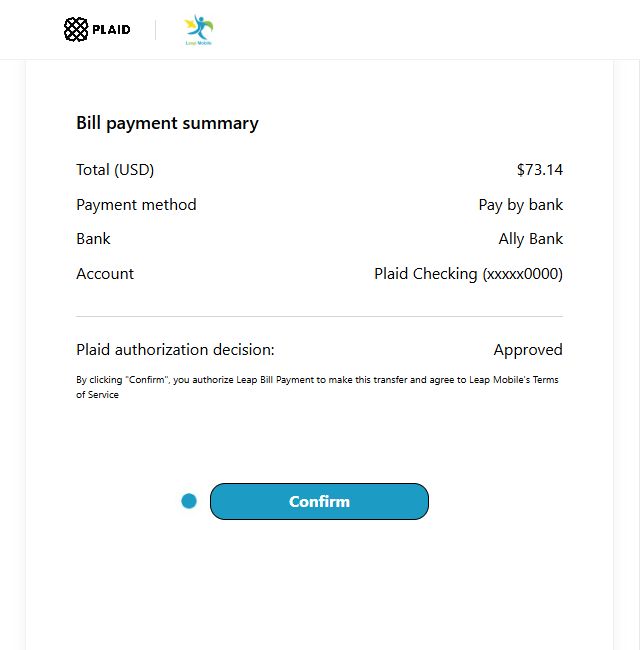
This fictional mobile bill illustrates a pay-by-bank flow. The final review is a separate step from connecting the account.
Review the bill

Check what you are paying before choosing the bank-payment option.
Connect a payment account

Select the appropriate institution and complete the bank connection.
Read the payment authorization

Check the amount, selected account, recipient, and authorization terms.
How to complete the request
- Open the payment request inside the service and review the bill or transfer amount.
- Choose the bank-payment option. Select your institution, complete authentication, and choose the account.
- Read the final authorization, including timing and any recurring-payment terms. Confirm only the payment you intend to make.
- Keep the confirmation and check the service’s payment status. A submitted payment can still be processing.
The sample’s authorization result is about this demo payment. It is not loan approval or proof that money has settled. Connecting an account alone is not the same as authorizing a debit.
Sources: Interactive Transfer demo · Transfer documentation
Official sandbox screenshots
Account funding: Auth, Identity Match, Signal, and Balance working together
Here, account funding means adding money to a fictional financial app. It is different from receiving business financing. One connection can support several checks without several separate logins.
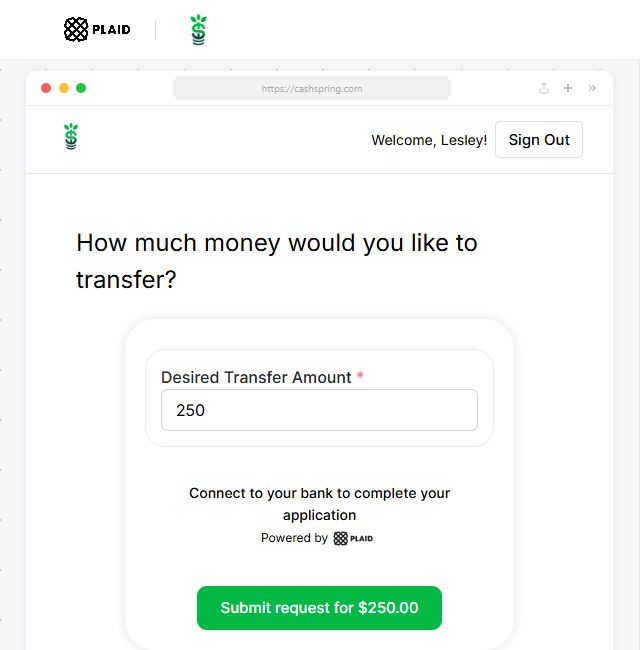
Enter the amount

The customer begins the deposit request inside the sample app.
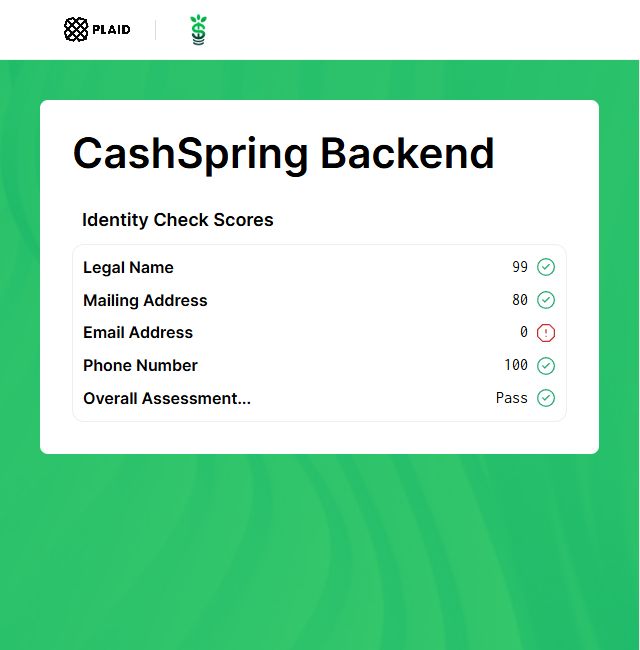
Identity Match results

The service compares supplied details with bank-held ownership information.
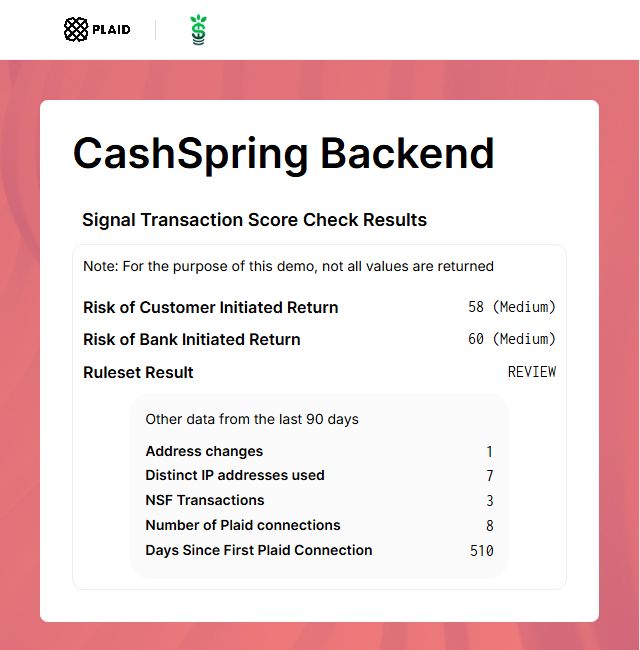
Signal payment-risk review

The company receives a payment-risk assessment. The customer does not fill out a Signal form.
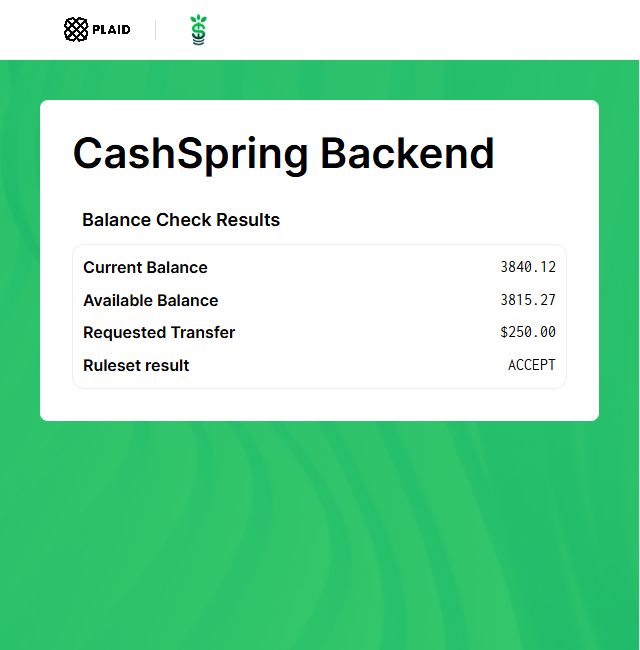
Balance check results

This receiving-side example compares available funds with the proposed transfer.
How to complete the request
- Start the app’s deposit request and check the amount and destination.
- Connect the source account through Plaid. Complete any identity verification the app separately requests.
- Finish the account-selection and sharing screens. The app can then perform the checks enabled for that connection.
- Review any separate transfer authorization and follow the app’s next step. Wait for its deposit status before treating funds as available.
Auth supplies supported payment-account details. Identity Match compares ownership details; Identity can return available bank-held owner information. Signal and Balance support the service’s payment checks. None of these sample scores is a credit score or an Excel Capital lending decision.
Sources: Interactive account-funding demo · Auth · Identity · Signal · Balance
Assets, Statements, and Bank Income: the same connection, different records
These products start with a bank connection and request different records. The guides below follow Plaid's documentation. Use the bank-login screenshots above for the shared connection steps; these are not separate screenshots of each product.
Assets
- Open the provider’s asset-verification request and review the information requested.
- Connect the relevant bank and select the accounts. Add another institution if the flow offers it and the request requires it.
- Finish sharing and return to the provider while the report is prepared.
What arrives: A report that can include balances, transaction history, and account information. Assets documentation.
Statements
- Open the statement request and check which accounts or statement periods the provider needs.
- Connect a supported institution and complete the permissions shown.
- Return to the provider and confirm it received the required statements. Ask about an alternative if your bank or period is unavailable.
What arrives: Available bank-issued PDF statements. This route retrieves statements from the bank rather than asking you to upload files. Statements documentation.
Bank Income
- Open the income request and choose the account where the relevant income arrives.
- Complete bank authentication, account selection, and the requested sharing consent.
- Return to the service and follow any request to clarify income sources or provide additional evidence.
What arrives: Supported income information derived from bank activity. This is a different product from Payroll Income and the Plaid Check example above. Bank Income documentation.
Payroll Income and Document Income: two ways to provide income information
Your provider may offer a payroll connection, document upload, or both. These guides follow Plaid's documentation; the supported payroll providers and accepted documents depend on the service making the request.
Payroll Income
- Choose the payroll connection option in the income-verification request.
- Find the supported employer or payroll provider. Use the account you normally use to access that payroll service.
- Complete the requested sign-in and security checks, then finish the sharing flow.
- Return to the requesting service. If your provider is unavailable, use an offered document option or ask the service for another method.
What arrives: Supported income and employment information from the connected payroll account. Payroll Income documentation.
Document Income
- Choose an accepted document type shown in your request, such as a pay stub or tax form.
- Prepare a clear, complete file. Keep one document per file and follow the displayed format and size limits.
- Upload the requested documents and review the selection before submitting.
- Wait for processing and return to the service for its result or follow-up.
What arrives: The submitted documents and supported extracted information or risk signals, depending on the setup. Upload completion does not mean the documents have passed review. Document Income documentation.
You can explore the product choices in Plaid’s Link demo. Select “Payroll and Document Income” for that example. Use the demo’s test instructions, never your real payroll credentials in a sandbox.
Investments, Liabilities, and Investments Move
Follow the guide for the task your service requests: sharing portfolio holdings, sharing debt information, or setting up a brokerage transfer.
Investments
- Start the connection from your financial-planning or investment app.
- Choose the institution holding the investments and complete authentication.
- Select the eligible accounts, review access, and finish Link.
- Return to the app and allow holdings and investment activity to load.
What arrives: Supported holdings, securities, and investment transactions. Sharing this information does not itself place a trade. Investments documentation.
Liabilities
- Open the debt-account connection request in the service.
- Find the bank or loan servicer and complete its authentication steps.
- Select the supported credit or loan accounts and finish the sharing screens.
- Return to the service to review the information it received.
What arrives: Supported debt details, such as balances, payment dates, and loan terms. Connecting does not pay off or refinance the debt. Liabilities documentation.
Investments Move
- Begin a transfer request with the brokerage receiving the assets.
- Follow its Plaid connection request for the existing brokerage account.
- Check the retrieved account details and the transfer selections in the brokerage’s workflow.
- Review and submit any separate transfer authorization, then track progress with the brokerage.
What happens: Plaid helps gather information for supported asset transfers. The brokerage controls the transfer instructions and follow-up. Investments Move overview.
Database Auth: when the service offers account-number entry
- Choose the manual account-entry option only if the requesting service offers it.
- Enter the routing number, account number, and any ownership details requested. Check each number carefully.
- Submit the information for the service’s verification process.
- Follow any additional verification step the service presents. A supported fallback may differ from instant bank login.
Database Auth supports verification from account and routing information. Availability and follow-up depend on the integration, so a manual option is not guaranteed in every Plaid request. Database Auth overview.
Which Plaid products have no separate customer walkthrough?
Several products support a company’s checks or data processing. You complete the service’s connection, identity, or payment flow; there is no separate consumer signup for each of the following tools.
| Product | What you complete | What the company handles |
|---|---|---|
| Monitor | Provide the identity details requested by the service and answer any follow-up. | Watchlist screening and review of potential matches. |
| Protect | Complete the service’s onboarding and any additional verification it requests. | Fraud-risk evaluation using supported signals. |
| Enrich | Use the app’s normal account or transaction workflow. | Add categories and merchant details to transaction data. |
| Guaranteed Payments | Review and authorize the payment through the service’s payment flow. | Manage eligibility and contractual payment-risk coverage. This does not guarantee financing approval. |
Identity, Identity Match, Balance, and Signal also work on the receiving side after the relevant connection or request. Their sample results appear in the account-funding walkthrough above. A company can combine products, so the number of Plaid products it uses does not tell you how many screens you will see.
Plaid bank verification not working? What to check
A failed connection does not tell you whether your business qualifies for funding. It tells you that the connection needs attention.
Start with the issue shown on screen:
| Problem | Next step |
|---|---|
| Bank does not appear | Ask your funding contact about supported options. Availability can depend on the requested product. |
| Login is rejected | Sign in on your bank's own website and verify the saved username and password. |
| Security code does not arrive | Check the contact details your bank uses for authentication. |
| Bank requests another action | Review its website for new terms or third-party sharing settings. |
| Temporary connection error | Check for bank or service problems and retry later. |
| Connection succeeds but review remains incomplete | Ask your funding contact what information is still needed. |
Plaid's connection troubleshooting guide covers login issues, authentication, bank settings, and technical interruptions.
For a business account, also check that you selected the appropriate banking portal and that your user access permits the requested connection. Do not disable bank security protections to force a connection.
If you cannot connect, ask whether another verification method is available for your application. Do not assume a different account or a screenshot will satisfy the same requirement.
Our assessment of Plaid for business owners
Plaid's main advantage for a business owner is convenience: a supported connection can save you from retyping account details or gathering records by hand. The walkthroughs also show why the purpose of the request matters. Linking an account, proving your identity, and authorizing a payment are different tasks.
The main drawback is that availability varies by bank, account type, and product. A login can succeed while a report is still being prepared, and a provider may need information Plaid cannot supply. If that happens, ask what is missing and which alternative your provider accepts.
For Excel Capital applicants, Plaid comes in prior to funding. Follow the request attached to your application and check with your funding contact if the account choice or requested information is unclear.
How we reviewed Plaid: We used Plaid's developer documentation, consumer help pages, security materials, and public sandbox demos. The screenshots show fictional demo data. They illustrate the products and do not show Excel Capital's internal systems or a customer's account.
Frequently asked questions
Which banks work with Plaid?
Search for your bank inside the connection request you received. Plaid supports thousands of financial institutions, but support varies by product, account type, and app. Its institution coverage explorer lets you check coverage by product. A bank appearing in a general list does not guarantee it will work for your particular verification request.
How long does Plaid bank verification take?
There is no single completion time for every request. An online bank connection can finish during your session, while retrieving records and reviewing them may take longer. If the service offers microdeposit verification, you may need to wait for a deposit and return to confirm it. Follow the timeframe shown in your request and ask the provider when its review will be complete. See Plaid's verification methods.
What is a Plaid verification code, and why did I receive one?
Plaid may send a code or verification link when you connect an account or confirm details during a request. Your bank may also send its own authentication code. Enter a code only in the session you started. If a message is unexpected, do not share the code with anyone; check the request through the app or company's official website. Why Plaid sends connection messages.
Does Plaid offer business loans
Plaid supplies financial technology used by other companies. If you see its name while applying for financing, identify the provider offering the funds and review that provider's terms. Connecting through Plaid is not a loan offer.
Does Plaid cost anything for the person connecting an account
Plaid says connecting financial accounts through its consumer service is free. That does not determine the fees charged by the app, bank, or financing provider you are using. Plaid's consumer overview.
How far back can Plaid see transactions
There is no single history period for every Plaid connection. For the Transactions product, the initial request can cover up to 730 days, subject to available data, and a continuing connection can accumulate additional history. Your provider's configuration matters. Transaction history documentation.
That does not establish how much history Excel Capital requests for your application. Ask your funding contact for the relevant period.
Can I use Plaid without entering my online banking password
Some bank connections authenticate through the bank's own site or app. Other verification methods can use account details or microdeposits when the service supports them. These options do not all provide the same information, so ask which alternatives satisfy your provider's request. Additional verification methods.
Does Plaid bank verification mean a credit inquiry
Bank verification and a credit bureau inquiry are different steps. Ask your financing provider whether its application includes a credit inquiry and whether it is soft or hard. A Plaid connection alone does not explain the provider's complete credit review process.
Plaid also offers consumer reporting products through Plaid Check, so avoid assuming every Plaid workflow has the same purpose. Plaid Check.
Can I disconnect after verification?
You can manage supported connections in Plaid Portal. If your application is still being processed, ask whether further verification is needed before disconnecting. Removing access stops future sharing through that connection, but does not erase information the company already received. See Plaid’s disconnection instructions.
Is Plaid the same as Decision Logic
They are different providers. If you previously completed a Decision Logic request, that does not automatically complete a new request through Plaid. Follow the instructions associated with your current application.
You can also read our Decision Logic guide for background on that service.
Get help with verification or explore funding
If Excel Capital has requested Plaid verification, contact your funding representative with questions about the request or the account you should use. You can also reach us through our contact page.
If you are still exploring financing, review your business funding options. At Excel Capital, Plaid verification takes place prior to funding, rather than at the start of the initial application.

